66 comments found.

Hi, thank you for an amazing piece of work! I have purchased and output 5 versions of my logo in different colors. However on each version I get the same error on rendering. There is pixelation and a flicker that happens during a camera move (I’m using the multicam setup). Can you explain how to resolve this? Thanks!
Hi, Can you send me a sample? This is the first time this issue is reported, The sample will help me investigate it. Ill get back to you soon after that.
Awesome jobs!!! I’ve just bought it, but I use mac (so do not have Documents\Adobe\After Effects) . Could you tell me how to install the package for my configuration : After Effects CS5 on mac os x 10.9.3? Thanks !!!
install them on Applications/Adobe After Effects XX\Presets
copy / paste
it seems not working when I put them into the Application/... I copied into /home/Documents/Adobe/After Effects and it works better. I continue. Thanks for the rapid response 
, I’ve just sent you a mail.
Yes, I’ve just seen and replied, thanks and hope to hear from you soon
Hi, great logo animations, thanks. I purchased and downloaded the files, unzipped it, but when I open up any of the .aep files, I get an error in After Effects saying that the file ”..... ” doesn’t exist.
I’m using CS6, will that work?
Hi, You have to open AE first then go to open file, browse and open the project. get back to me for any question, I’m here to help.
Worked like a charm, thanks.
Happy to hear that
Let me begin with FANTASTIC WORK! Is there a way to render without the back wall? I need to provide the logo over a transparent background.
Yes, but it’s a little bit tricky. - In the comp 3, on the “wall” layer master there is a “NO WALL” check box, check it This will get rid of the wall and the shadows, but if you want to export with an alpha channel you have to do a small manipulation :
- In the Comp 3 , in the FLARE layer master, make the intensity to 0 after disabling the animation by clicking on the small watch.
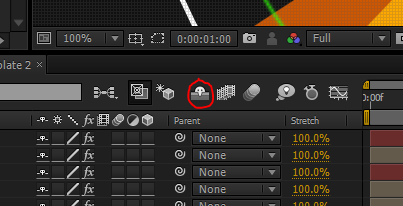
-In the Comp 4 show all the layer by clicking on the Shy icon at the left of the motion blur and frame blending icon, then hide the layer 19 named “TheFlare”
Now you can click on the Toggle transparency Gird Icon to see the transparency (in the comp preview window, just between the camera and the resolution choice menu).
If you have difficulties to do it, just send me a mail and I’ll respond with a joined AE file prepared.
Get back to me if you need any thing else.
I’m stuck on locating “layer 19” in COMP 4 (which seems to be just for audio)
This is because they are hidden, you have to click on the Shy switch, this one http://4.bp.blogspot.com/-bioChFlHabI/T5lYcJ4gNAI/AAAAAAAAA3Q/0Om3fLP3Cnw/s1600/shy.PNG
here is a screenshot: https://www.dropbox.com/s/5ab96vwnynshsd5/Shy%20icon.png?dl=0
Do checkout my 3d character Christmas project, http://videohive.net/item/zuby-christmas/9830767?WT.ac=portfolio&WT.z_author=LazybonesTV
you know, it’s kind of forbidden to make its own promotion on the forum or the comments.
Great little 3D reveal template set. I can see it’s already done well. A nice Hive offering!
thank you very much
How can i increase the overall size of the logo box, i have it at full scale in there however the logo is not quite the desired size at the end of the project. Thanks!
You still can make the camera end closer in the animation: - In the camera comp select “camera” or “Animation” layer and hit “u” - you’ll see now the keyframes, select the last one of “Distance (default:3000)” - double click and set a lower value, exp: instead of 4500 tape 3500 or 3000 Now the camera end it’s course closer to the logo.
You may want to save the new preset. - the layer selected press u again to close it, than open it again using the small triangle at the left of the layer name. - Select “Effects” - Move the cursor to the time 0:00 - go to Animation/save animation preset Save it with the others, if administrator issue save it anywhere than copy/paste it with the others.
Get back to me if you need any thing else.
Is there anyway to delete that background all together to use as a simple 3d logo reveal with alpha channel? thanks!
Yes in the comp 3, on the “wall” layer master there is a “NO WALL” check box, check it This will get rid of the wall and the shadows, but if you want to export with an alpha channel you have to do a small manipulation :
- In the Comp 3 , in the FLARE layer master, make the intensity to 0 after disabling the animation by clicking on the small watch.
-In the Comp 4 unhide all the layer by clicking on the Shy icon at the left of the motion blur and frame blending icon, then hide the layer 19 named “TheFlare”
Now you can click on the Toggle transparency Gird Icon to see the transparency (in the comp preview window, just between the camera and the resolution choice menu).
Get back to me if you need any thing else.
That’s great! Top seller
I hope so  , thanks
Great work! Looked all over for animations like these.
Thank you! I really appreciate
Just WOW!
thanks
WOW! Awesome work!
Thanks Bro!
I like your work…well done!
Thank you
Great job!
Thanks